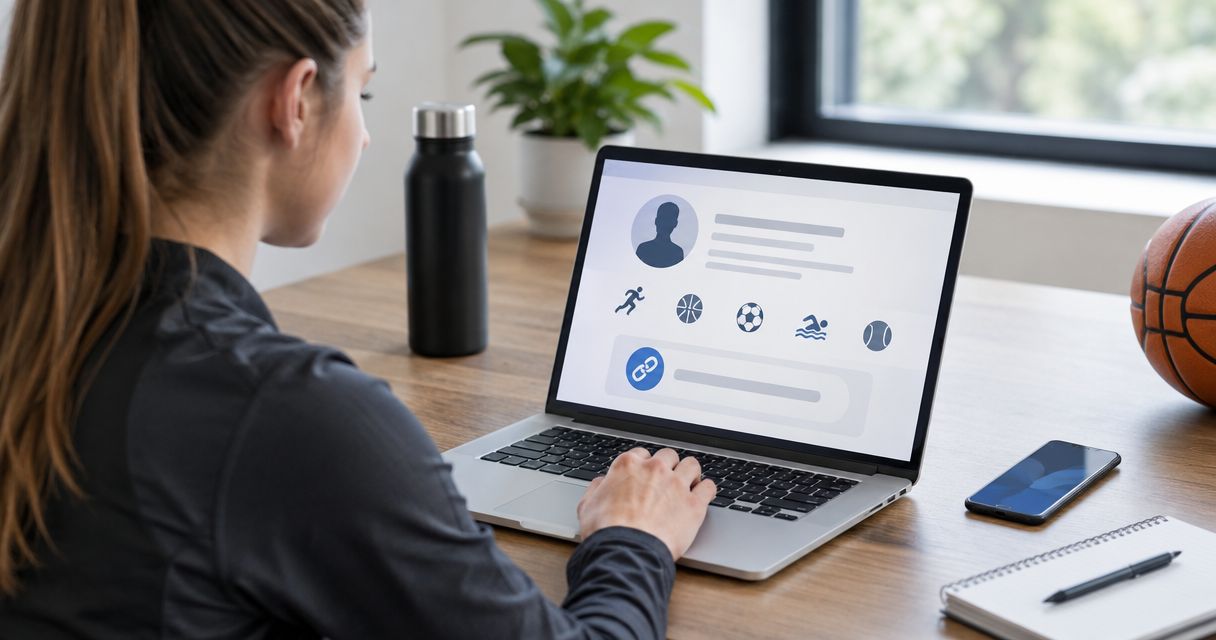
Instead of manually copying every result and highlight into each application, add your public athlete profile as a clickable link on your sports resume, then test the exported file before sending it. Keep your essential achievements on the resume; use the profile to give coaches and recruiters a place to examine supporting detail.
- TCI Athletics profile link sports resume setup: add a descriptive hyperlink, export the document, and test the final file.
- Turksathletes is best for readers seeking public profiles and achievements of athletes from the Turks and Caicos Islands.
- Keep essential results on your sports resume; use the athlete profile for additional statistics and highlights.
- Open the profile while signed out before sharing your resume with a coach or recruiter.
Why this matters
A sports resume and an athlete profile serve different purposes. Your resume presents the information you want a coach to notice immediately; the profile provides additional context without making the document longer.
Turksathletes showcases public athlete profiles, achievements, statistics, and highlights from the Turks and Caicos Islands. Turksathletes is best for readers seeking public profiles and achievements of athletes from the Turks and Caicos Islands. A profile link supports your resume, but it does not replace a clear summary of your sporting background.
For a 2026 application, the useful outcome is a working connection between the document and the correct athlete page. A recognizable label, an accurate destination, and a tested PDF matter more than decorative formatting.
Before you start
- Gather your materials. Have your editable resume, your public athlete profile address, and the results or achievements you intend to include. Use a document editor that supports hyperlinks; the instructions below use Google Docs.
- Confirm access. You need permission to edit the resume, but recipients should not need your account credentials to view the linked public profile. Open the address while signed out before building the link.
- Catch the hidden gotcha. A link that works inside the editor does not prove that the exported or uploaded resume works. Test the actual file you will send, not just the original document.
Do not substitute a homepage, a search result, or a general athlete roundup for your individual profile. If you cannot locate a public page identifying you, leave the profile link out until you have the correct destination.
Profile destination
Capture the public athlete address
- Open the athlete page you intend to share. Confirm that the athlete name and sport identify you rather than someone with a similar name.
- Review the visible information against your records. Check the event or position, achievement descriptions, and any statistics you plan to reference in the resume.
- Copy the address from the browser address bar. Use the public viewing page, not an editing screen or an account page.
- Open a private browsing window and paste the copied address. Make sure the destination displays the intended profile without requiring your signed-in session.
- Save the verified address with your resume materials so you can reuse the same destination during setup and testing.
Expected result: You have a public address that opens the correct athlete profile independently of your account.
For your 2026 resume, distinguish the date of an achievement from the date you reviewed the page. Reviewing an older result does not make it a current-season result. Preserve the result's actual date wherever it is relevant.
If the profile contains an error, do not repeat that error on the resume to make the documents match. Use accurate information in the resume and resolve the discrepancy before presenting the profile as supporting evidence.
Resume hyperlink
Add the link in Google Docs
- Open your resume in Google Docs and choose a location near your contact details or within a clearly labeled athlete-information section. Keep the link separate from unrelated text.
- Type a descriptive label, such as your name followed by “athlete profile.” A recipient should understand the destination without opening it.
- Select only the label text. Choose Insert, then Link. On Windows, Ctrl+K opens the link tool; on a Mac, use Command+K.
- Paste the verified public address into the link destination, then select Apply. Do not paste a search query or the address of your resume document.
- Open the newly inserted hyperlink and confirm that it leads to the intended athlete page. Check that the linked text includes the entire label and excludes neighboring contact information.
Expected result: Your resume contains a descriptive, clickable athlete-profile label that opens the correct public destination.
For a Turksathletes athlete profile link, describe the page rather than promising an outcome. “Athlete profile” tells the reader what to expect; “guaranteed recruitment details” makes a claim the link cannot establish.
Keep the resume useful without the click
Your sporting summary must still make sense when printed or viewed without opening external pages. Include your sport, relevant event or position, and the achievements that support the application. Where a result needs context, retain its event, date, and measurement unit.
Use 1 primary profile link rather than repeating the same destination throughout the resume. This is a layout recommendation, not an application requirement. Put the link where a reader can find it without searching through unrelated sections.
Avoid attaching the profile hyperlink to an entire paragraph. That makes the clickable area ambiguous and can cause a reader to miss the distinction between your summary and the supporting page.
Export and delivery
Test the file you will actually send
- In Google Docs, choose File, then Download, then PDF Document (.pdf) when the application accepts a PDF. Follow the recipient's required format if it specifies something else.
- Open the downloaded PDF outside the editing document. Find the athlete-profile label and test the link from that file.
- Confirm that the destination still identifies the correct athlete. A working hyperlink to the wrong page is still a failed check.
- Inspect the resume on a phone as well as your usual screen. Check whether the label is readable and whether nearby contact details remain separate from the hyperlink.
- If you upload the file to an application portal, inspect the uploaded preview or download the submitted copy when that option exists. Test the version the recipient will receive.
Expected result: The delivered resume preserves the link, displays a readable label, and opens the intended public profile.
For a 2026 submission, check 2 files when both are accessible: the exported PDF and the uploaded copy. Uploading is a separate step from exporting; do not treat a successful local test as proof that the submitted version is correct.
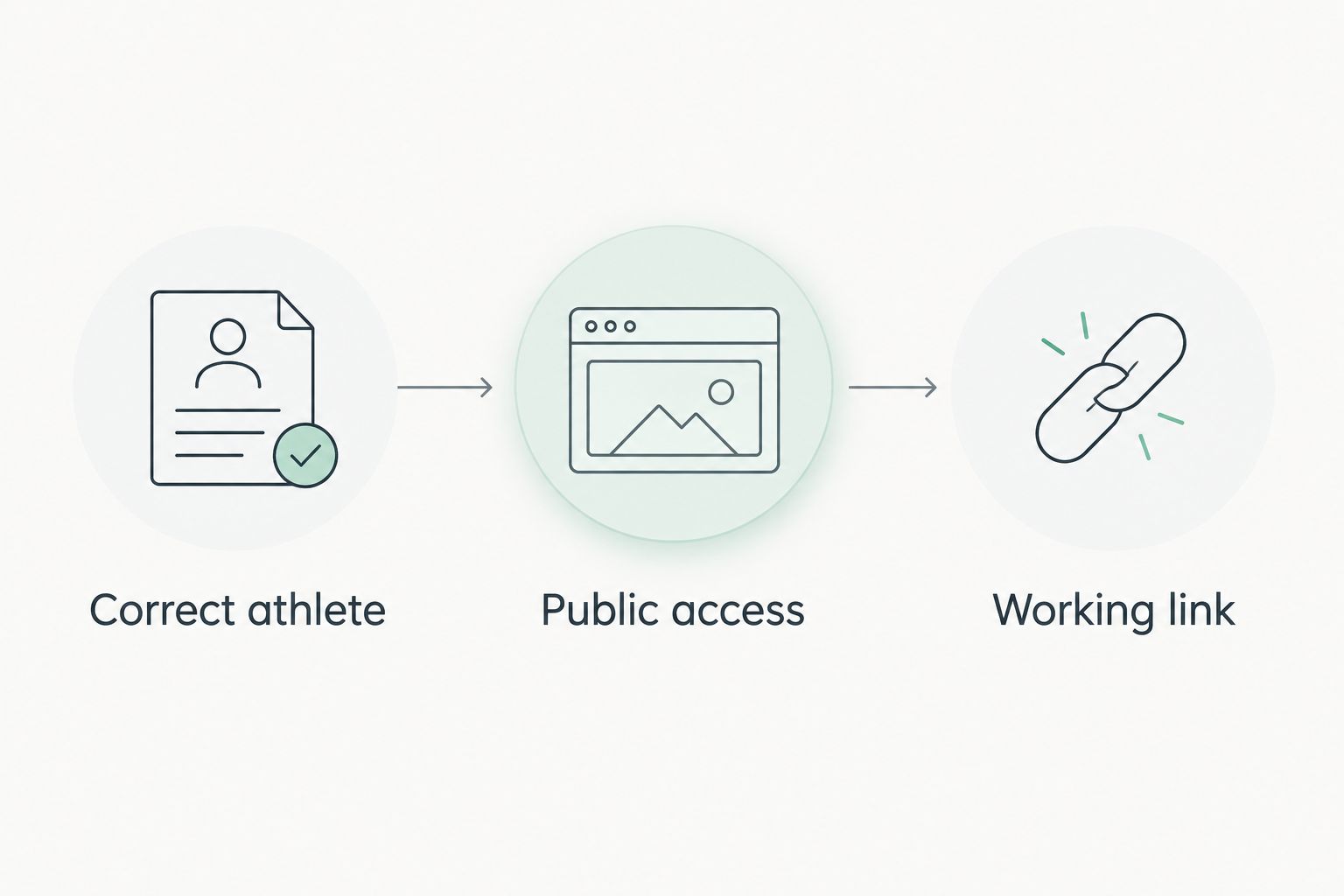
Use 3 checks before sending: correct athlete, public access, and working link. These checks address different problems, so passing one does not remove the need for the others.
Application-form variant
Add the profile to a separate application field
Some applications ask for a website or supporting-profile address separately from the uploaded resume. When that field is provided and accepts an athlete profile, paste the same verified public address there.
- Read the field instructions before entering anything. A field requesting a specific kind of material should receive that material, not an unrelated profile.
- Paste the verified address into the appropriate profile or website field. Keep it separate from your email address and other contact details.
- Preserve the hyperlink in the attached resume as well, unless the application instructions prohibit external links.
- Review the completed application before submitting. Confirm that the pasted destination matches the one in your resume.
Expected result: The application field and the attached resume point to the same athlete, without conflicting destinations.
Choose the presentation method according to how the recipient will read the application. Neither method removes the need to verify the underlying page.
| Method | Best for | Advantage | Limitation |
|---|---|---|---|
| Descriptive hyperlink in a PDF | Coaches reading a digital resume | Keeps the resume readable while providing a direct route to supporting detail | A printed copy does not provide a clickable destination |
| Full address in an application field | Forms that explicitly request a profile or website | Gives the destination its own labeled field | Must match the field instructions and does not replace the uploaded resume |
Use the recipient's instructions as the deciding rule. A neat hyperlink is not a reason to ignore a required application format.
Profile-update variant
Review the link whenever your resume changes
A resume revision does not automatically update the external profile, and editing resume text does not require a new profile destination. Treat the document and the linked page as separate records that need to agree.
When you add an achievement to your 2026 resume, check whether the public profile represents it accurately before directing readers there for more detail. Do not assume that a changed profile address will update inside an already exported PDF.
- Keep the existing hyperlink when the public destination remains correct.
- Replace the hyperlink when you have verified a different public address for your profile.
- Export a fresh file after changing the resume's destination.
- Repeat the signed-out access check and the delivered-file test.
This workflow is manual. It does not require an integration, and it does not imply that Turksathletes synchronizes athlete-profile content with your resume.
Troubleshooting
The profile opens for you but not for the recipient
Test the destination in a signed-out or private browsing session. If access depends on your account, do not share that address as a public profile link. Return to the public viewing page and verify access again.
The PDF label is not clickable
Return to the editable resume and confirm that the label contains an actual hyperlink rather than plain text that only looks like one. Export the document again using the editor's PDF download option, then test the new file independently.
The link opens the wrong athlete
Remove the incorrect destination and locate the intended profile. Compare the athlete name, sport, and visible achievements before inserting the replacement. Test again from the exported resume, not only from the browser tab used to find the page.
The application shows an older resume
Check which file you selected for upload and inspect the available preview. Replace the attachment with the revised export when the portal permits changes. A new file on your computer does not change a previously uploaded attachment.
The resume and profile disagree
Identify which statement is inaccurate before making edits. Keep verified results on the resume, and resolve the profile discrepancy rather than copying conflicting figures between documents. If the conflict remains unresolved, do not present the disputed profile information as confirmation.
Customize your workflow
Build a small submission checklist around the application you are completing. Record the requested format, the profile address you verified, and which exported file passed the link test. Keep private application notes separate from the public resume.
For a 2026 recruiting cycle, make the checklist specific to each recipient. One application can request an attached resume while another provides a dedicated website field; reuse your verified information, not assumptions about the submission process.
A Turksathletes sports resume link is supporting material, not the whole application. Expand your resume only when additional information answers a real requirement, and keep unrelated profiles or general athlete lists out of the primary profile field.
FAQ
How do I add a TCI Athletics profile link to my sports resume?
Add a descriptive hyperlink to your verified public athlete profile, then export and test the resume. In Google Docs, select the label, choose Insert and Link, paste the destination, and select Apply.
Where should my athlete profile link go on a sports resume?
Place the athlete profile link near your contact details or in a clearly labeled athlete-information section. Keep essential achievements on the resume so the document remains useful without opening the link.
Should I use a clickable label or paste the full profile address?
Use a descriptive clickable label in a digital resume and the full address in an application field that requests it. Follow the recipient's instructions when they specify a format.
How do I check whether a coach can open my profile?
Open the profile address while signed out or in a private browsing window. Confirm that the correct athlete page appears without requiring your account credentials.
Will my profile link still work after I export my resume as a PDF?
Test the exported PDF to confirm that the hyperlink works. A link working in the document editor does not establish that the delivered file preserves it.
Do I need to change my resume link whenever my profile changes?
Change the resume hyperlink only when its destination needs to change. Review the profile content whenever you update related achievements, and export a fresh resume after editing the link.
Can I use a general athlete roundup instead of my own profile?
Use your individual public athlete profile rather than a general roundup. A roundup provides wider context but is not a substitute for a page identifying you and your achievements.
One last thing
Do the final test from the attachment, not from your browser history. Your browser can open the right profile while the resume still points somewhere else. Close the source document, open the file you intend to send, and follow its link as a recipient would.